Getting started
Finding your way around
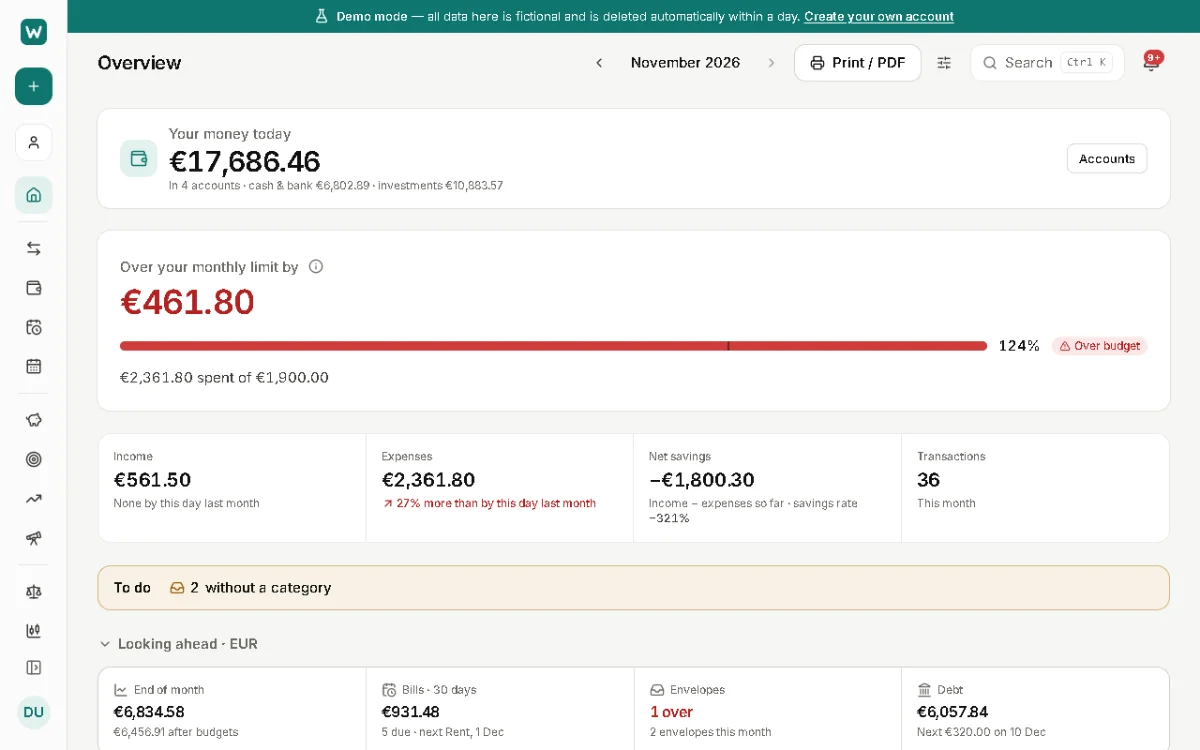
WalletCalm groups its pages by what you come to do: keep track, plan, see your wealth and understand where money goes. Search reaches every page from anywhere.
The sidebar
Home shows the month at a glance. Track has Transactions, Accounts, Recurring and Calendar. Plan has Budgets, Goals, Cash flow and the Long-term plan. Wealth has Net worth, Investments and Debts. Insights has Reports, the Weekly recap and Tax. Organize has Categories, Rules, Merchants and Documents. Households and Settings come last.
A business space has its own menu, with invoices and bills, month-end and VAT; see Setting up a business space.
On a phone
The tabs at the bottom are Home, Transactions, Plan, Wealth and More. Plan and Wealth open a short list of their pages; More has everything else, including Settings. The + button adds what fits the page you're on, such as a transaction, an account or a goal.
Search and shortcuts
Press Ctrl+K (⌘K on a Mac) to search pages, accounts, merchants and transactions, or to start an action such as a new rule. Other shortcuts:
- N adds a transaction.
- J and K move to the next or previous transaction while one is open.
- H hides or shows amounts, handy in a café or on a shared screen.
- ? lists the shortcuts.
The welcome guide and checklist
A new account starts with a short welcome guide: what fits you, your accounts, a first statement, your monthly plan. Afterwards, the checklist on Home shows what's left, such as adding accounts, organising categories or setting up recurring payments.
Updated 21 November 2026