Accounts & transactions
Categories, rules and the To sort inbox
Categories say what money was for. Rules put new transactions in the right one for you, and the To sort inbox gathers everything that still needs a category.
Where to find it: Categories · Rules · Categories › To sort
Categories and how they're budgeted
Each category is one of three kinds, which decides how the monthly plan treats it. Fixed: bills with a set amount, each with its own budget. Flexible: everyday spending that shares one Flexible budget. Non-monthly: irregular costs such as travel or yearly fees, where what you don't spend rolls over.
Categories sit in groups. When you start, you can pick from suggested groups and change them later; a category can also carry a tax heading for the Tax page.
The To sort inbox
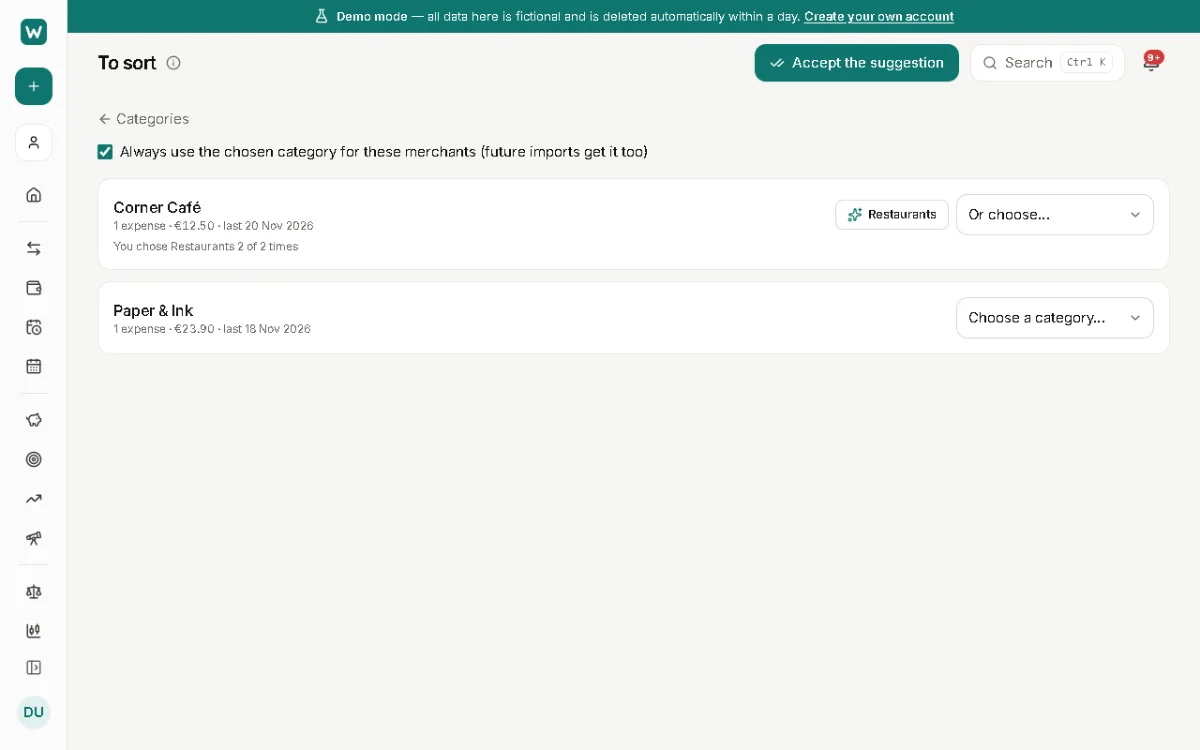
Transactions without a category wait in To sort. Open it from the Categories page, from its card on Home or with Ctrl+K.
- Transactions are grouped by payee, so one choice can sort many at once.
- Pick a category for the group.
- Keep Always use the chosen category for these merchants ticked: future imports from them get the same category.
Rules
A rule matches transactions by merchant, description, account, type or amount, and sets a category, a cleaner merchant name, a description, tags, a goal or a split. New and imported transactions run through the rules from the top down: the first rule that sets a field wins it, and tags from every matching rule add up.
A category you picked by hand is never overridden. To tidy up older transactions too, use Apply to existing… on a rule: you see what would change before anything does.
- Open Rules and choose New rule.
- Describe what to match and what to set.
- Use Move up or Move down in a rule's menu: the order decides which rule wins.
Merging and removing categories
Merge into… moves a category's transactions and budgets into another one; it shows how many before anything moves.
Deleting a category asks what to do with its transactions: move them to another category or leave them uncategorized, where To sort picks them up. The category waits in the Trash for 30 days, and restoring it gives the transactions back to it.
Updated 22 November 2026
About this feature: Budget planner